

If you do the same handful of tasks every day, you've probably wished at least once that you could automate them. Renaming a batch of files, combining a few spreadsheets, building a report that looks almost the same every time.
Each of these may only take a few minutes, but repeated every day they quietly eat a serious chunk of your time, and every manual repetition is another chance to make a mistake.
A big part of my work has been building exactly this kind of automation, from small scripts to systems that run around the clock without supervision. This article gives you two things: where to start with Python automation, and six lessons I only learned by building real automation, none of which I had seen in any tutorial.
First, ask: is it worth it?
Not every repetitive task is worth programming. Sometimes building a tool for a two-minute job takes longer than the job ever will.
A quick calculation: a task that takes 20 minutes a day, 20 days a month, costs you about 6 hours 40 minutes a month. If the tool takes 4 hours to build, you are ahead from the second month. A task that happens once a month and takes five minutes is probably not worth any code at all.

Real savings = manual time removed − time to build and maintain
Don't underestimate the "maintain" part; you'll see why below.
One more thing: automating a broken process just repeats the same mistake faster. Before writing code, make sure the current process actually makes sense.
Three good first tasks for Python automation
1. Organizing files
The easiest starting point is a folder full of mixed-up PDFs, images and spreadsheets. This script sorts files into folders by extension, using only Python's standard library, so there is nothing to install:
from pathlib import Path

import shutil


folder = Path("downloads")


categories = {

    ".pdf": "pdf",

    ".jpg": "images",

    ".png": "images",

    ".xlsx": "spreadsheets",

    ".csv": "spreadsheets",

}


for file_path in folder.iterdir():

    if not file_path.is_file():

        continue


    category = categories.get(file_path.suffix.lower())

    if category is None:

        continue


    target_folder = folder / category

    target_folder.mkdir(exist_ok=True)


    destination = target_folder / file_path.name

    if destination.exists():

        print(f"Skipped (already exists): {file_path.name}")

        continue


    shutil.move(file_path, destination)

    print(f"Moved: {file_path.name} -> {category}/")


print("Done.")
This is the actual result of running that exact code on a test folder:
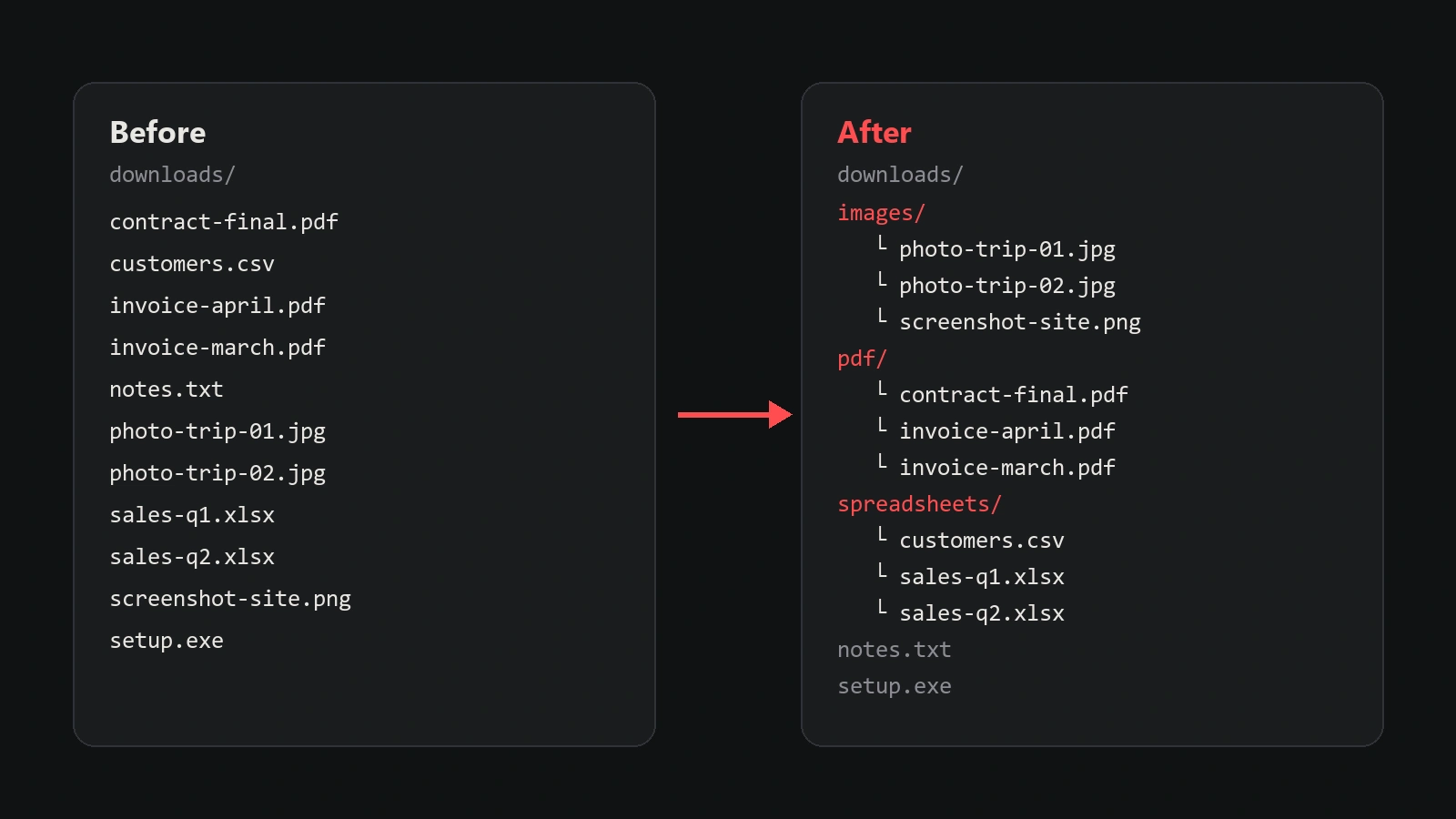
Notice that files with unlisted extensions (like notes.txt) are left alone, and a file that already exists at the destination is never overwritten. Always try it on a test folder first.
2. Combining Excel and CSV files
If you merge a few sales or report files every week, pandas does it in seconds:
from pathlib import Path

import pandas as pd


files = sorted(Path("sales").glob("*.csv"))

if not files:

    raise FileNotFoundError("No CSV files found in sales/")


frames = []

expected = None


for file in files:

    df = pd.read_csv(file)


    if expected is None:

        expected = list(df.columns)

    elif list(df.columns) != expected:

        raise ValueError(f"{file.name}: columns {list(df.columns)} != {expected}")


    frames.append(df)


combined = pd.concat(frames, ignore_index=True)

combined.to_csv("combined_sales.csv", index=False)


print(f"{len(files)} files, {len(combined)} rows")
The column check is deliberate. If one file names a column differently (say price instead of amount), pandas silently creates a new, mostly empty column and your report breaks without a single error. This way you find out immediately.
A common temptation is to remove duplicate rows with drop_duplicates. Be careful: two rows that look identical may be two real, separate transactions.
3. A report that runs itself at 8 a.m.
As long as you have to start the script yourself, the job is only half automated. The other half is scheduling.

On Linux, use cron. This line runs the script every day at 8:00:
0 8 * * * /path/to/venv/bin/python /path/to/report.py >> /path/to/report.log 2>&1
Don't drop the last part (>> report.log 2>&1). Without it, if the script fails one day, its output and errors go nowhere and you'll never know.
On Windows, use Task Scheduler: create a Basic Task, set it to Daily at 8:00, choose Start a program as the action, put your virtual environment's python.exe in Program, the full path to report.py in Arguments, and the project folder in Start in.
What about the web and Telegram?
Collecting data from websites and building Telegram bots are also very common uses of Python automation, but each is a world of its own. For when scraping is worth it, read What Is Web Scraping and When Is It Worth It?, and if your bot slows down as users grow, read Why Telegram Bots Slow Down as Users Grow.
Six lessons from real-world automation
The scripts above run on your own machine with your own data, so when they break, you see it right away. But automation rarely stays there.
Imagine that 8 a.m. report has grown: it now pulls sales data from the shop's admin panel, transactions from the payment gateway, and finally sends the report to the manager. Every day, with nobody watching. This is where the real problems start, and these six lessons belong exactly to this stage.
1. Automation must know when it's done
The report script has a simple rule: "If sending the report fails, wait and retry." A good rule, until the day the sending service delivers the report successfully but answers with a new phrase the script doesn't recognize.
The script treats it as an error and sends again, and again, and again. The result? The manager wakes up to dozens of copies of the same report.

Rule: "Never give up" has a second half that's easy to forget: the states that end the job (success, a definite rejection, a manual stop) must all be recognized. Any response the script doesn't recognize should be treated as a bug, not an ordinary error to retry.
2. Silence looks like death
The script asks the payment gateway for a transaction export. The gateway says "the file is being prepared, we'll send you the link," which sometimes takes a few minutes. Meanwhile, the script prints nothing.
A colleague sees a frozen window, assumes it has hung and stops it, when the script was only seconds away from continuing.

Rule: if people can't tell "waiting" from "stuck," it's effectively stuck, because their hand goes to the stop button. Any wait longer than a few seconds should say what it's waiting for and what it will do next. One plain line per cycle is enough: no counters, no clever timers.
3. Display text is for humans, not for decisions
The shop panel shows "Unavailable" next to a product that simply hasn't arrived at the warehouse yet, the same word it uses for discontinued products. If the script decides based on that word, it drops a product arriving tomorrow from the stock report.
Rule: text written for people to read may be imprecise or change one day. Make decisions from structured data, such as the status field and stock count, not the label displayed next to them.
4. Measure, don't guess
Every service you connect to has its own limits, and they're usually not written down anywhere. One handles several requests per second with ease, another blocks you for a few minutes if you go too fast, and a third doesn't care about request count but slows down or stops responding when you ask for all the data at once.

Rule: measure each service separately: how many requests, how large, and if you overdo it, how long until you're let back in. Ten seconds of waiting and half an hour of blocking call for completely different decisions.
5. Carry the real reason all the way to a human
A log line that only says "error fetching data" is almost useless. Behind it there may be a perfectly clear sentence, such as "access token expired," that a single re-login would have fixed.
Rule: print what the service actually returned. And name your default branch "unrecognized," not "unexpected," because that branch shows that your rules are incomplete, not that the service misbehaved.
6. "Ran without errors" is not "worked correctly"
Imagine the sales folder gets renamed one day. Without that first check, the CSV merge script finds zero files, builds an empty report and finishes without a single error. Everything looks green, but that day's report has nothing in it.
The same lesson applies to data: a script that finishes without errors may have saved a pile of wrong data. (In the web scraping article I describe exactly what that did to my Digikala scraper.)
Rule: every step should say how many things it processed or checked, not just that it had no complaints. That's why the CSV merge code above prints the number of files and rows at the end: you notice "0 files" immediately; you don't notice "OK."
Where to start
Pick one specific task, not five at once. A spreadsheet, a messy folder or a daily report is a good place to start.
Write down the current steps, see which parts are predictable and repetitive, and turn only those into a small program. Before trusting it, compare its output against a few real examples.
If the problem is simple, start with Python's standard library; reach for pandas for data, and add scheduling if it needs to run on time. You don't need a database, a dashboard or an API on day one; add them when a real need shows up.
Conclusion
Python automation can simplify a lot of your daily work, from organizing files and merging spreadsheets to a report that's ready every morning.
But the value of automation isn't in its line count; it's in solving a real problem and staying reliable over time. And reliable means it knows when it's done, never goes silent, measures instead of guessing, and says so when it sees something it doesn't recognize.
If you have a business process you want automated seriously and reliably, explore my automation and data extraction services.
FAQ
Do I need to be a professional programmer to start automating with Python?
No. For simple tasks like organizing files or merging CSVs, basic familiarity with variables, conditions, loops and file handling is enough. The more serious the automation and the longer it runs unattended, the more error handling and logging matter.
What can be automated with Python?
File management, Excel and CSV processing, collecting data from the web, building reports, sending notifications, working with APIs and many repetitive office tasks. How easy a task is to automate depends on how predictable its steps are.
Do I need a server to run a Python script automatically?
No. Simple scripts can run on your own computer with Windows Task Scheduler or cron, as long as the computer is on at that time. If it must run around the clock or be used by others, a server is the better choice.